
Find your footing.
Build your rhythm.
A practical guide for the people using OyamaCRM and the team keeping it running.
Your workspace at a glance.
Use the sidebar for your main work areas, the top bar for search and account tools, and the donor tabs to move between donor views. The bottom command pill follows your current page.
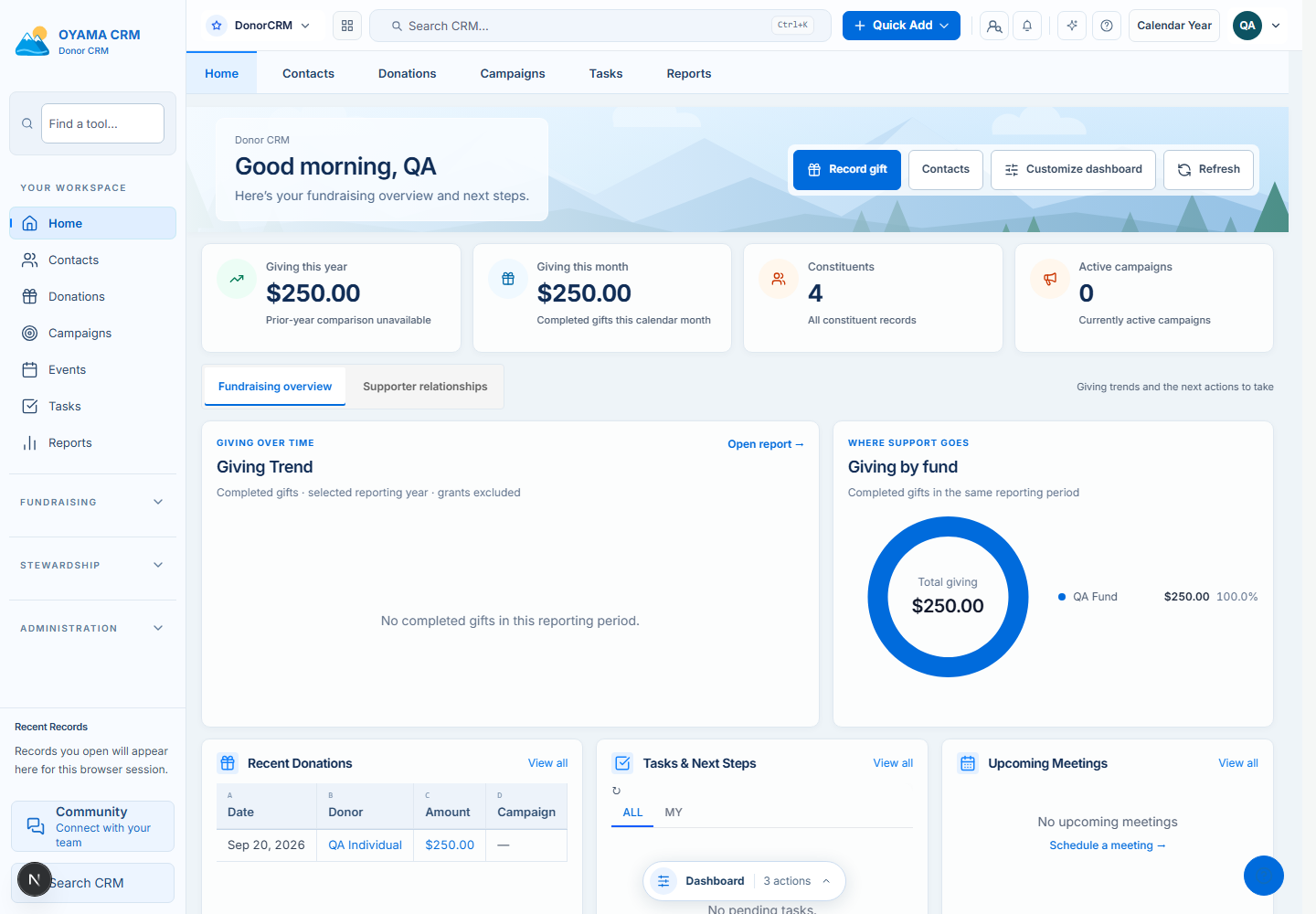
From context to follow-through.
Review your dashboard.
Check the reporting period, giving summaries, trends, and follow-up cards. Refresh when you need updated data, and distinguish an unavailable metric from a confirmed zero.
Find the relationship.
Open Contacts, search by name, email, or phone, and refine the directory with the available filters. Open the constituent to review their history and details.
Work with giving records.
Use Donations to review gifts. Follow the existing add or edit flow to change a record; copying or selecting table cells does not update stored data.
Plan the next touchpoint.
Review tasks and the relevant communication workspace. Validate recipients, content, and permissions before sending communications.
Familiar controls, less friction.
| Action | Control |
|---|---|
| Focus a cell | Click its background or Tab into the table |
| Navigate | Arrow keys; Home / End for row edges |
| Jump to table edges | Ctrl or Cmd + Home / End |
| Select a range | Shift + arrow keys or Shift + click |
| Copy values | Ctrl or Cmd + C (tab-separated text) |
| Reach a cell action | Enter or F2 |
| Resize a column | Drag the right edge of its header |
| Clear a range | Escape |
Shared table shells offer Compact rows / Comfortable rows. Column widths are session UI state. Links, checkboxes, sorting controls, and forms retain their normal behavior. Mobile pages may use card views.
Open the command dock
Hover over the bottom pill with a mouse, or click/tap it. Keyboard users can Tab to the pill and press Enter. Choose an available page action; Escape collapses the dock. Actions may change with the current page and selection.
Read the period with the metric.
Use the Period control in the top bar to choose the reporting context. Your organization’s fiscal settings determine fiscal-year boundaries. Review the selected dates before comparing results.
Period giving, lifetime giving, and stored relationship status are different measures. Lifetime totals and status counts do not become period totals when the fiscal year changes. If a metric is unavailable, review its error state and retry instead of treating it as zero.
Run a local workspace.
Use a Node.js version compatible with the repository’s Next.js release, pnpm 10, and a development MySQL database. Repository access is required.
git clone https://github.com/jamesk9526/OyamaCRM.git
cd OyamaCRM
pnpm install --frozen-lockfile
Copy .env.example to .env and configure the development database, secrets, and browser/API origins. Prisma and the API read .env; Next.js also reads it. Existing .env.local values take precedence in the web app, so keep them consistent.
pnpm db:generate
pnpm db:migrate
pnpm dev:all:strict
Open http://localhost:3000; the default API port is 4000. Optional pnpm db:seed:small adds synthetic data to a development database. Do not seed a live organization database.
Check your changes
pnpm typecheck
pnpm lint
pnpm test:unit
pnpm test:api
Browser suites need their target servers and Playwright Chromium. The workspace screenshot suite uses intercepted QA fixtures; see its evidence notes before treating it as an end-to-end production check.
Continue to the hosting guide →Guides from the repository.
These links follow repository access permissions. This site summarizes current behavior; the source guides contain deeper implementation and operational details.
When something looks wrong.
The dashboard shows an unavailable metric.
Retry the affected data or refresh the page. Check the API health, permissions, and selected period. Do not substitute zero for a failed request.
A command or module is missing.
Confirm your current workspace, role, enabled features, and any required selection. Ask an administrator to review access rather than bypassing permissions.
The local API cannot connect to the database.
Verify that MySQL is running, DATABASE_URL points to the intended development database, and the API process receives the environment variables. Run the documented migrations and regenerate the Prisma client after schema changes.
A screenshot differs from my installation.
The gallery captures v2 with synthetic records and a particular configuration. Data, permissions, viewport, and subsequent code changes can affect the screen.